2009-04-07

How to import APE & FLAC to iTunes?

First of all, what’s APE/ FLAC?
About APE:
It’s a lossless audio data format by Monkey's Audio. Monkey's Audio does not remove information from the audio stream, but size is smaller than WAV.
About FLAC:
FLAC stands for Free Lossless Audio Codec, an audio format similar to MP3, but lossless, meaning that audio is compressed in FLAC without any loss in quality.

How to import APE/FLAC to iTunes?

1.We need a tool -- WinMount. I have use WinMount v3.2.0227, or you may download the latest version from here:
http://www.winmount.com/down/WinMount_setup.exe

2. We may start this function from here: File->Mount CD/DVD -> Mount Audio CD

3. Click “Mont Audio CD”, and then we can mount the APE/FLAC. Yeah! We have seen that it is mounted to the Y disk.

4. Run iTunes, we will find that iTunes will automatically search album information.


5.After a while, we can see that iTunes has download the complete album information.

If you have used iTunes, you should be very familiar with the below steps. We just need select the favorites songs, then convert them and import to iTunes.

The converted songs have been list in our playlist. We will be able to download them to our iPod. Enjoy!

2009-03-19

30% discount or even free-- coupon of WinMount

From 2009-3-13 to 2009-9-12, you may easy to get 30% discount , or even free to get the code.
It’s mean: You can save 30% money when you buy a license for WinMount with the coupon.
Not $49, only $34.3. Even $0
Take the opportunity and buy a license at an attractive price !

How to get the coupon?
1.Please send them a mail (coupon@winmount.com) with subject "WinMount coupon"and get your coupon code.
2. Get more discount:
please write a review or press for WinMount in your blog or other platform;
send us a mail with subject "WinMount coupon", and provide them the address of your blog or other platfom that we can check it;
3. In normal, they will reply you in 2 work days.

How to use the coupon?
http://www.regnow.com/softsell/nph-softsell.cgi?item=15593-1
Please click button (order now), and input your coupon code, then (update) it, the code will come into effect.
Steps: http://www.winmount.com/discount/help.gif
(Offer expires on: 9/12/2009)

2009-03-09

WinMount Review

In normal, we used compressed archives, and we need to decompress them with some software, such as WinRAR/WinZIP. Decompression is almost inevitable operation when use these compressed archives, and we have no other way to replace it. Decompression of small sized archives may be bearable, but in case of big sized archives, such as 800M or 1G large even larger, it will take long time. Besides, it will cause CPU occupancy rate very high, and it also requires large disc space for store files, which are unpacked from the archives. After used, you have to delete those files again. What a complicated process!
Mounting has broken this rule. It makes compressed archives to be used without decompression. Just need a software--WinMount (the size is small). WinMount is a new conception of file management. It provides a revolutionary way to use compressed archives. Files can be used directly by WinMount with mounting files/folders as virtual drive.

What is WinMount and let's test it?
Info:
Language: English
Version: 3.2 for 32-bit
Type: Application /file management
System platform: 2000/XP/2003/Vista
Download it form here: http://www.winmount.com/down/winmount_setup.exe

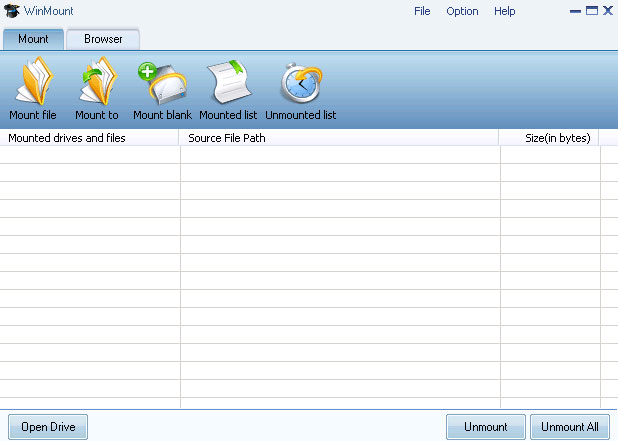
Screenshot:

1. Software Overview
It’s easy to install WinMount on Vista, and you just need to click “Next” all the way to complete installation. In the main interface, both “File” and “Mount” menus can mounting archives such as RAR, ZIP, or image files such as ISO, BIN, NRG, CUE, CCD into virtual drives. Such virtualized drives can be unmounted with “Unmount” command in the “Option” menu or the "Unmount" and "Unmount All" button in the bottom. On the toolbar, there are quick buttons: “Mount file”, “Mount to”, “Mount blank”,"Unmount list" and “Switch View ”, which are allowing users to carry out quick operation.

2. Features:
Mount:
It's a new concept in file management. It's useful in use compressed archives /images files or other formats files.
Test: Click "mount file" button, choose a ZIP file, "Open", you will find this Window:

< What is MOU?
MOU is a new file format that is copyright by WinMount, although it does not popular as other formats, but it has a great advantage: it defines a new compression standard. A MOU file can be mounted to a virtual disk or a local folder in an instant, whatever the size of MOU is 1G or larger. Worth Mentioning: MOU also has a high compress rate and WinMount supports converting other compressed formats to MOU formats. >

If I click "no", you will find this:

The winmount.zip has been mounted as a virtual disk "Y:” and now you may use this archive.
If you do not want to use it anymore, just choose it in the task management, and then click "Unmount" button, the virtual disk "Y:" will be unmounted.

Of cause, you may view the unmounted files in "Unmounted list":


Compression/Extraction:
Like most file compression programs, WinMount includes the ability to create archives. In my test, WinMount has a mode for compress files, and it supports compressing MOU/ZIP/7Z/ISO
Of cause, you may use the right-click do this (as other software)
WinMount is fully functional in Windows Explorer. We really like that you can pack or unpack an archive using your right-click control.
Some unique features include automatically detecting the origins after you are compressing. Using the Settings menu, you can change which files WinMount is associated with, where your default paths go, and more. And you can see the ratio of your compressed files by selecting the “info” in “Browse mode”(you may choose it in “Switch View”).

3. Help and Support:
WinMount provides all the essential help and support options a good piece of software requires, including a comprehensive “help topic”, FAQ and knowledge base. And, if you still can’t find what you're looking for, you can contact WinMount by email.

Tips:
1. Compressing large number of files in same type in a .MOU, such as DOC files, it can save space and facilitate management; moreover, those files can be directly opened and viewed with WinMount without decompression;
2. After mounting, the archives/image files such as including games or multimedia teaching software can be run or installed without decompression;
3. As a file management tool, WinMount not only supports mounting archives, but also supports mounting image files in various formats for easy use. It also can be used to install large software such as Vista or games.
4. You can create a WMT with WinMount, it can be saved after unmounted, you may place your temp files in it.
5. You can define the path of index files, which is generated when mounting large ZIP/RAR in first time. You may copy and paste them to other PCs, and then you should not wait when you mounting these large files in first time.
Summary:
WinMount is a new file management software, but it has more reviews by users, and although it has some deficiencies, but a good software needs development. If you use it, you will find WinMount is worth to choose.

2009-01-14

WinMount has released 64-bit version

First of all,what is 64-bit system?

"Bit", in a word: It's an address space of CPU. A 32-bit address register meant that 232 addresses, or 4 GB of RAM, could be referenced. At the time these architectures were devised, 4 GB of memory was so far beyond the typical quantities (16 MB) available in installations that this was considered to be enough "headroom" for addressing. 64-bit processors calculate particular tasks (such as factorials of large figures) twice as fast as working in 32-bit environments . This gives a general feeling of theoretical possibilities of 64-bit optimized applications.
Windows XP/2000 which are released by Microsoft base on 32-bit, especially in 2001,Windows XP has the largest users in the world. But following the more users, 32-bit can not meets all of the more requirements. So, 64-bit CPU/system have been released for these users.


Why should we released WinMount for 64-bit?

In 2003, Microsoft has launched Windows for 64-bit version officially , but it only solved the operating system platforms, we also need a lot specifically software for 64-bit . Unfortunately, the current, there is design for the 64-bit application software rather less, and even most of Microsoft's software is still 32-bit architecture, only a few little MSSQL database. As the Office software still not optimized for 64-bit systems. It can be said that we need more software for 64-bit applications.

As a system utilities software, WinMount supports compression/decompression,and as document management in a higher level. Now, 64-bit systems in development is the inevitable circumstances, a lot of software does not support for 64-bit systems , but we have released the version for the 64-bit systems. WinMount for 64-bit has the all of the features: compression / decompression, Mount archive / image file / folder / other formats. It makes more easier use in 64-bit system, and at the same time, following the development of 64-bit systems, WinMount will lead the development of document management in 64-bit system.


What is WinMount?

WinMount is a powerful windows utility which is dedicated to managing compressed archives and image files impressively and conveniently. It's used to mount MOU RAR ZIP folder to a virtual disk or a local folder, which enabling you to use the files inside directly without extraction, saves your time and disk space dramatically.

2008-12-15

coupon of WinMount-- Merry Christmas


Merry Christmas!

Get coupon for WinMount :

Please send a mail with subject "WinMount Christmas coupon" to coupon@winmount.com

You may save 30% money with this coupon when you get the license.

(Offer expires on: 1/30/2009)

2008-01-21

WMT - WinMount write-back function

Since WinMount has announced, it bring us a new way to use files. And WinMount are updating and improvement to self-improvement constantly. Now, WinMount add a new function --- Write-Back to files, which meets the need of users. Let’s look at this new function of WinMount.
In the earlier versions, we mount a file as a virtual disk, the files can be modified and operated, but all the modifications will be lost when we exit WinMount; we create a virtual disk, which can be operated, but if we cancel the disk that all the modifications will be lost. Now, WinMount add a new function-- Write-Back to files, you can choose to save or not, as your mind.
You can create a .WMT files as a virtual disk. WMT is a format which is self-developed by WinMount. And at the same time, we also add "mount WMT image file" and "mount CD-WMT image file" option in “mount” of the main menu. You can open the .WMT files from there.

Well, how to create a .WMT file? First, you can select “Generate a drive” from WinMount main menu, or choose “Generate New Formatted RAM Disk” from “mount” in the main menu. And you also can create the .WMT file from the “Mount Drive”. In the popped windows, you can choose the “Write-back to files”, and then you can select the path where you want to save the file.

is a format which is self-developed by WinMount, it can be created and opened with WinMount.

How create a .WMT files?

You can select the "Generate a Drive" from WinMount main menu, or click "Mount Drive" button.

  1. Create a .WMT files with Write-Back, it can be written and auto save the modification when you exit WinMount. Choose "Write-Back to files", and then you can select the path.
  2. Create a .WMT files with No Write-Back. Click "OK", a .WMT files has been created. You can write the files, but the file will be lost when you exit WinMount.

How open the .WMT files?

  1. Open the .WMT files
    • You can right click a WMT file in Windows Explorer, and select "WinMount | Mount", you can mount the RAR file on a new drive. It can be written and auto saves the modification when you exit WinMount. Choose "Write-Back to files, and then you can select the path.
    • You can select "mount WMT image file" from WinMount main menu, then you can select your .WMT files, you can mount the RAR file on a new drive. it can be written and auto save the modification when you exit WinMount. Choose "Write-Back to files", and then you can select the path.
Open the .WMT files with Read-Only
You can select the "Mount Image files Read-Only" from WinMount main menu, and select your .WMT files. However, the modification will be lost when you exit WinMount, only remains the original files.